Installing 3Shape Unite 23.1
DentalDesktop 1.7.83.0 will reach End-Of-Life stage in 2027. Ensure that your system is updated to the latest available version.
Note: These instructions follow the workflow for installing 3Shape Unite where an Administrator creates their own account and company that will be associated with the system. If you are not an Administrator or
Step 1: After Unite is updated to the version with the 3Shape Account, you will see the General License Terms and Conditions first. To proceed you will need to accept.
Step 2: Click “Get Started”
Step 3: If you have a 3Shape Account profile set to Administrator you can log in with that account. If not, you will need to create one. To learn how to create a 3Shape Account here. 
Step 4: Once logged in you will be asked to review the Company data, to make any changes select Edit for the relevant section. Once confirmed, continue by selecting My company data is correct. 
Step 5: Next, you will be asked to check your personal information, to make any changes select Edit for the relevant section. Once confirmed, continue by selecting My personal data is correct.
Step 6: To link the system to your 3Shape Account Company you will need to register the Unite installation. Confirm the process by clicking on I have read and Understood and click Register to continue.
Step 7: Set a personal PIN CODE of 6 digits an click Save to continue with the 3Shape Unite setup.
Step 8: Choose the country you are located in and click Finish.
Step 9: The system will now check for upgrades, download, and install them. Once the updates will be installed - the Unite introduction will be shown.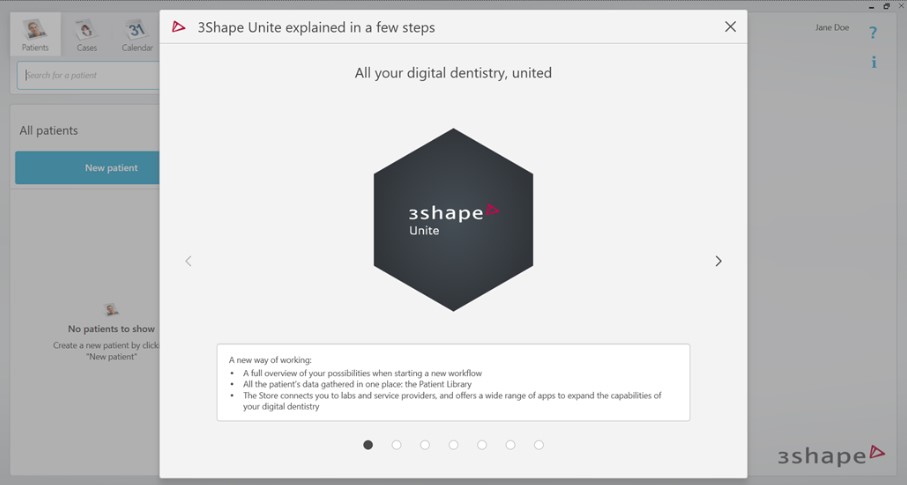
Note: If you log out, you will see the profile avatar page. Here you can see your user and that you are an administrator of the company that has been created (shown below the name of the account).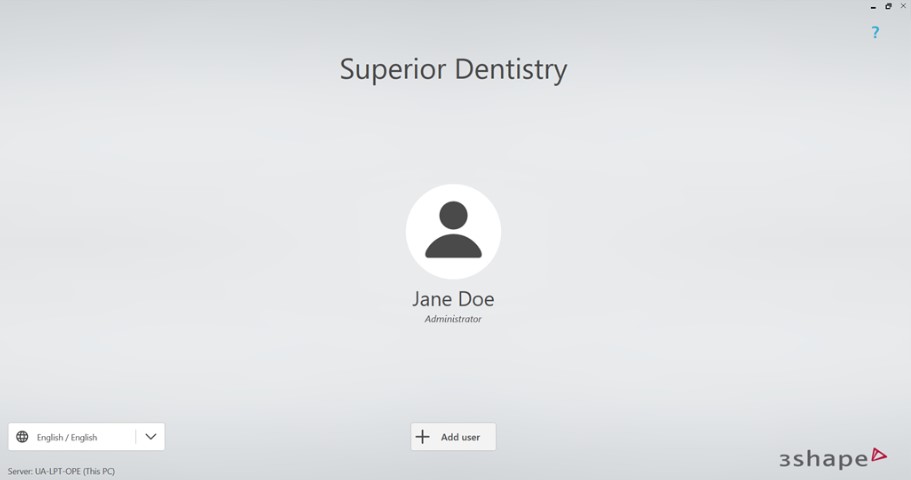
Contact 3Shape Support if you have any further questions.
For full information on correct usage consult the official Safety and Setup Guide and the most current Manual.